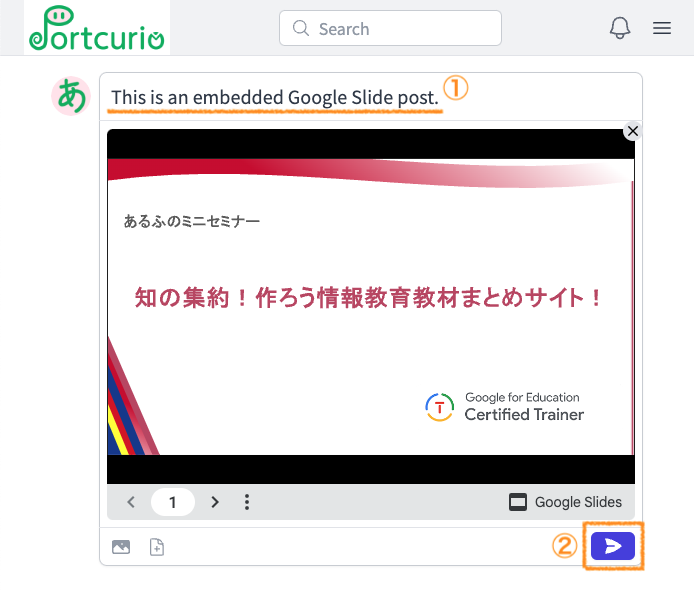

Embedding posts with Google Workspace services
If you are using a school account or a corporate account, you may be prohibited from obtaining (publicizing, etc.) the embed code. Please contact your organization's administrator as needed.
In addition, Microsoft Office files saved in Google Drive can also be posted using the method on this page (the layout is less likely to be broken than the Google Workspace editing screen).
Embedding posts is only available on PC (display is also possible on devices other than PC).
- Open the Google Workspace file you want to post (the example here is Google Slides).
- In Google Slides and PowerPoint, if they are shared with 'Anyone with the link' on Google Workspace, Posts containing URLs can also display previews.
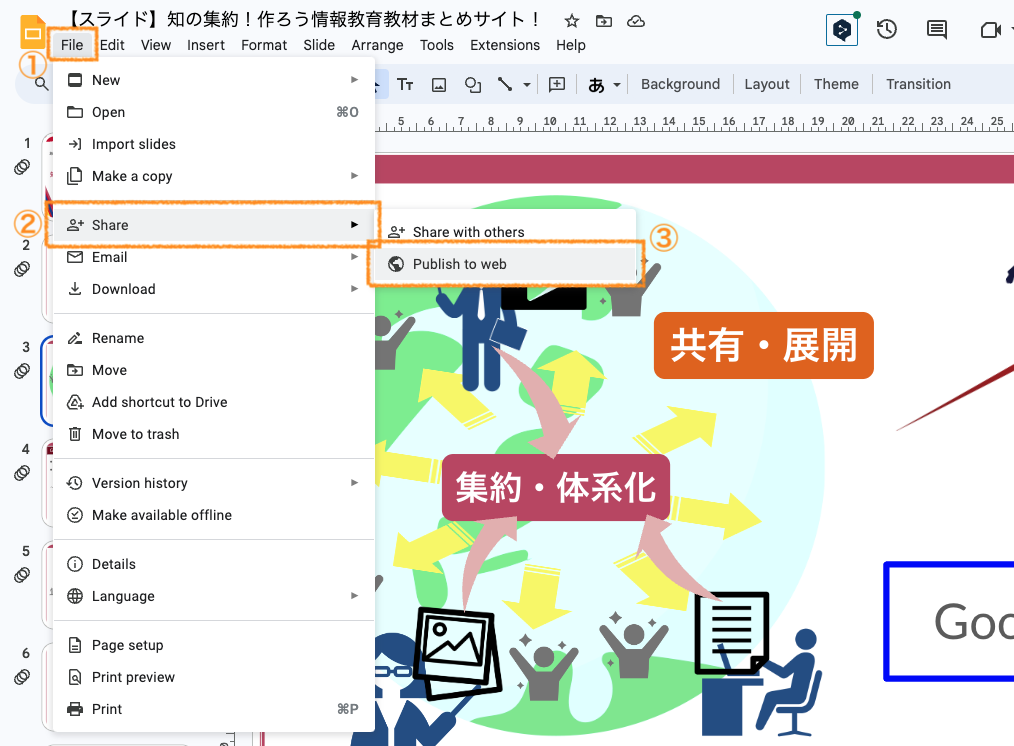
- Click 'File' → 'Share' → 'Publish to web'.
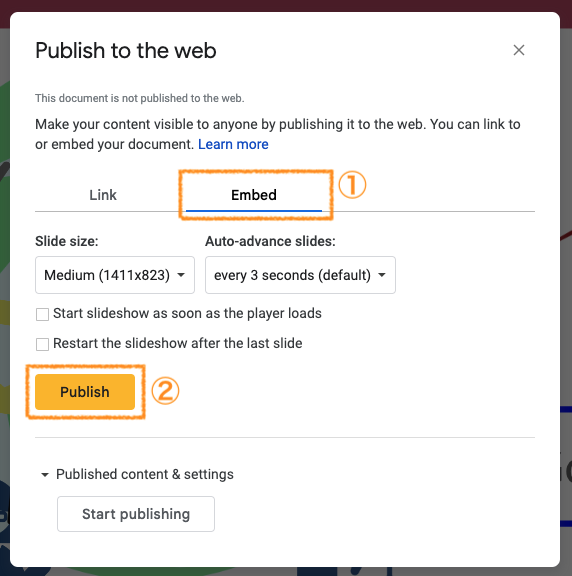
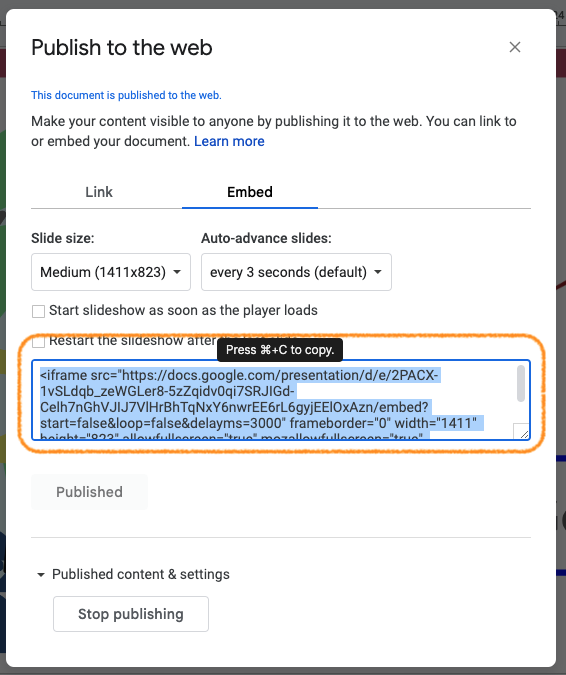
- Click 'Embed' tab → 'Publish'.
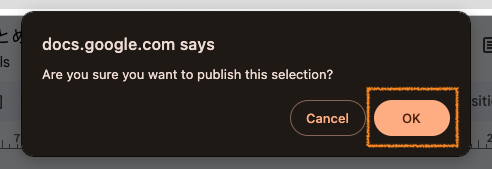
- Click 'OK'.
- Copy the embed code as it is without editing.
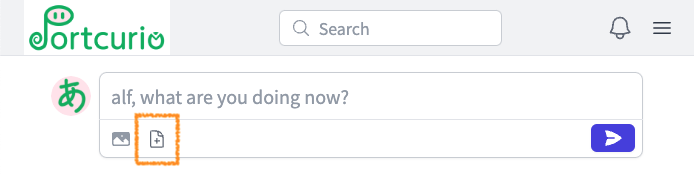
- Click the file icon in the Portcutio post form.
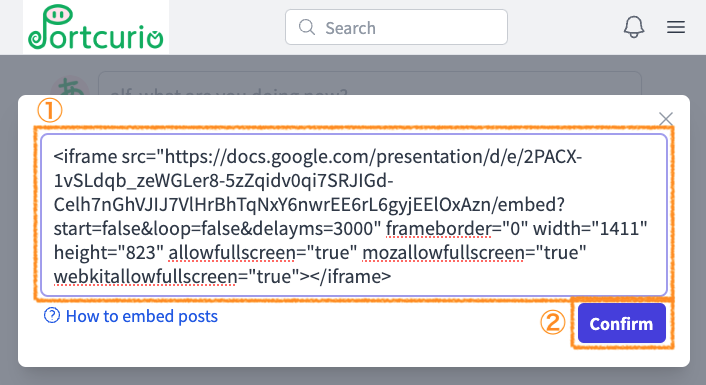
- Paste the copied embed code as it is without editing, and click the 'Confirm' button.
- Check the preview, enter the description if there are no problems, and click the post button.